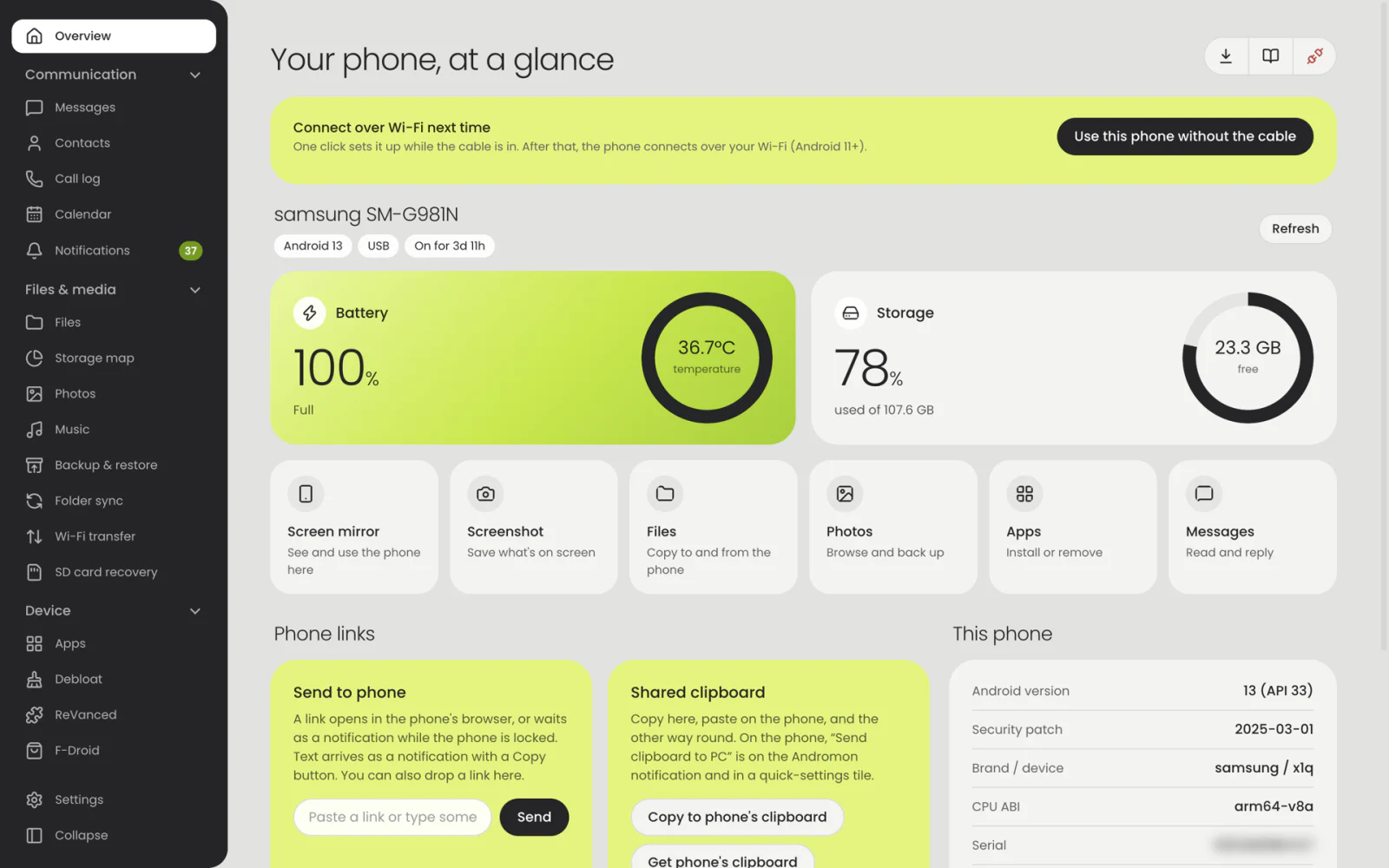
Andromon puts your phone's screen, messages, files, photos and apps in one desktop window. Plug the phone in and it connects by itself, over USB or Wi‑Fi. No account, no root, nothing to set up on the phone first.
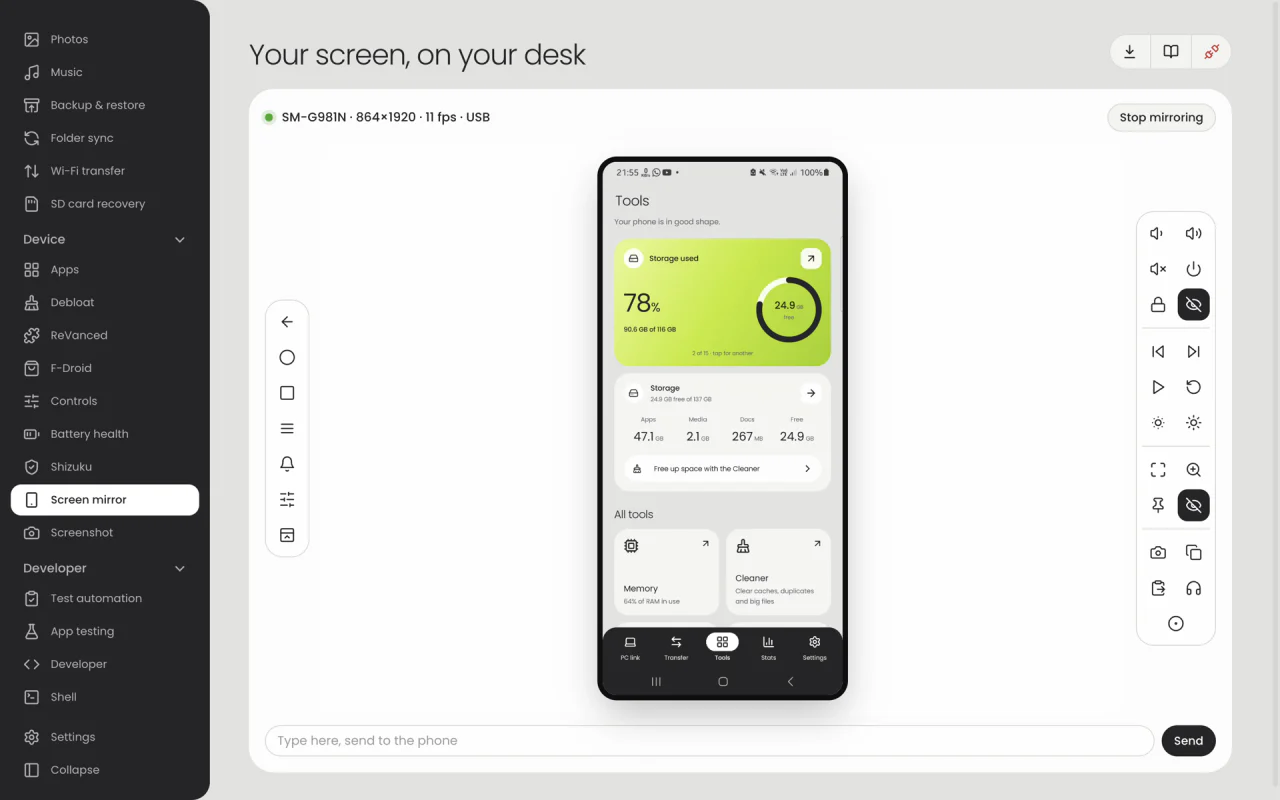
See and use your phone in a window at up to 60 frames per second. The mouse works as touch, the keyboard types on the phone, and the clipboard is shared both ways. The phone's buttons sit in slim icon strips beside the screen.
Quality adjusts by itself so the picture keeps up, over USB or Wi‑Fi
Phone sound on the computer (Android 11 and later)
Record the screen to MP4, with sound
Show the back or front camera instead of the screen (Android 12 and later)
Turn the phone's own screen off while you mirror
Messages and calls
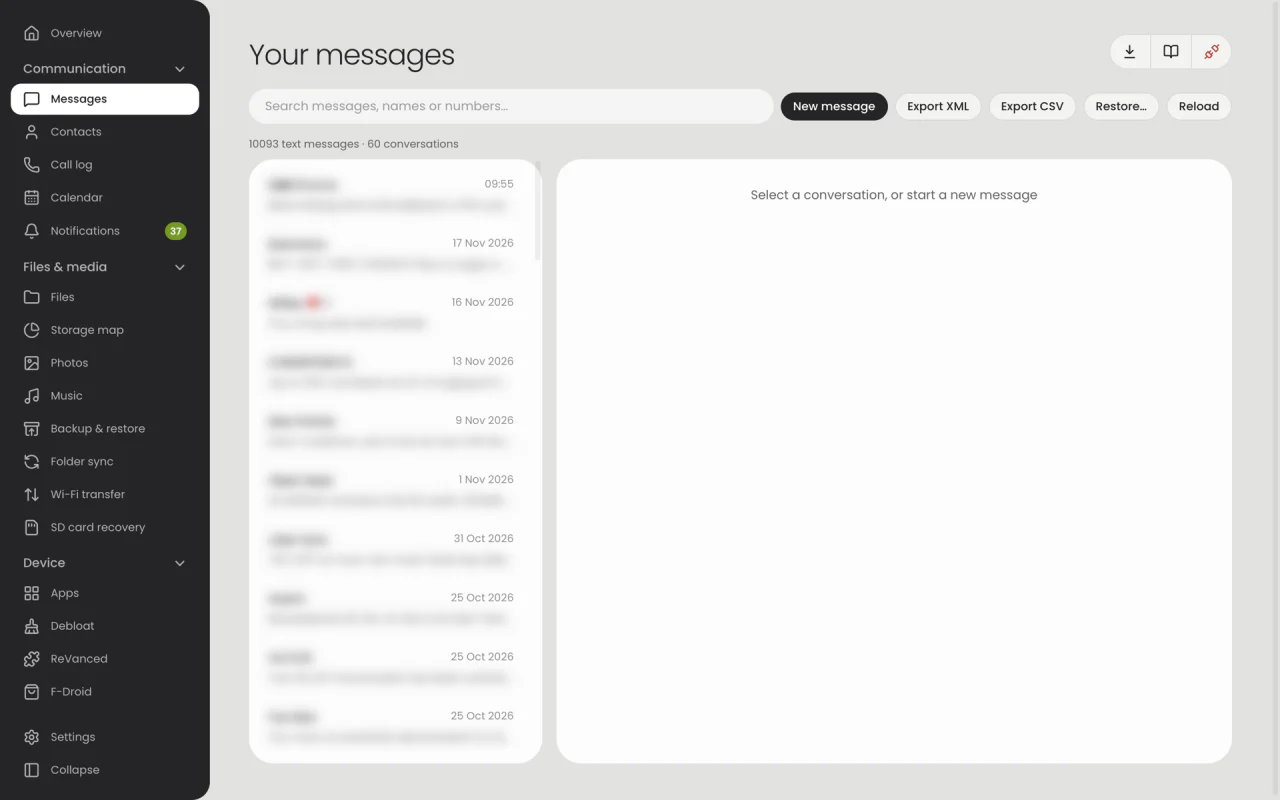
Send and read text messages from your computer
Your SMS and MMS conversations with contact names and pictures, a real keyboard to reply with, and search across everything. Incoming calls pop up on the computer, where you can answer, decline or silence them.
Reply to any app's notifications from the computer
Export messages to XML or CSV, and restore them later
Edit contacts and merge duplicates
Call log with filters and export
Files, photos and backup
Transfer files and photos between Android and PC
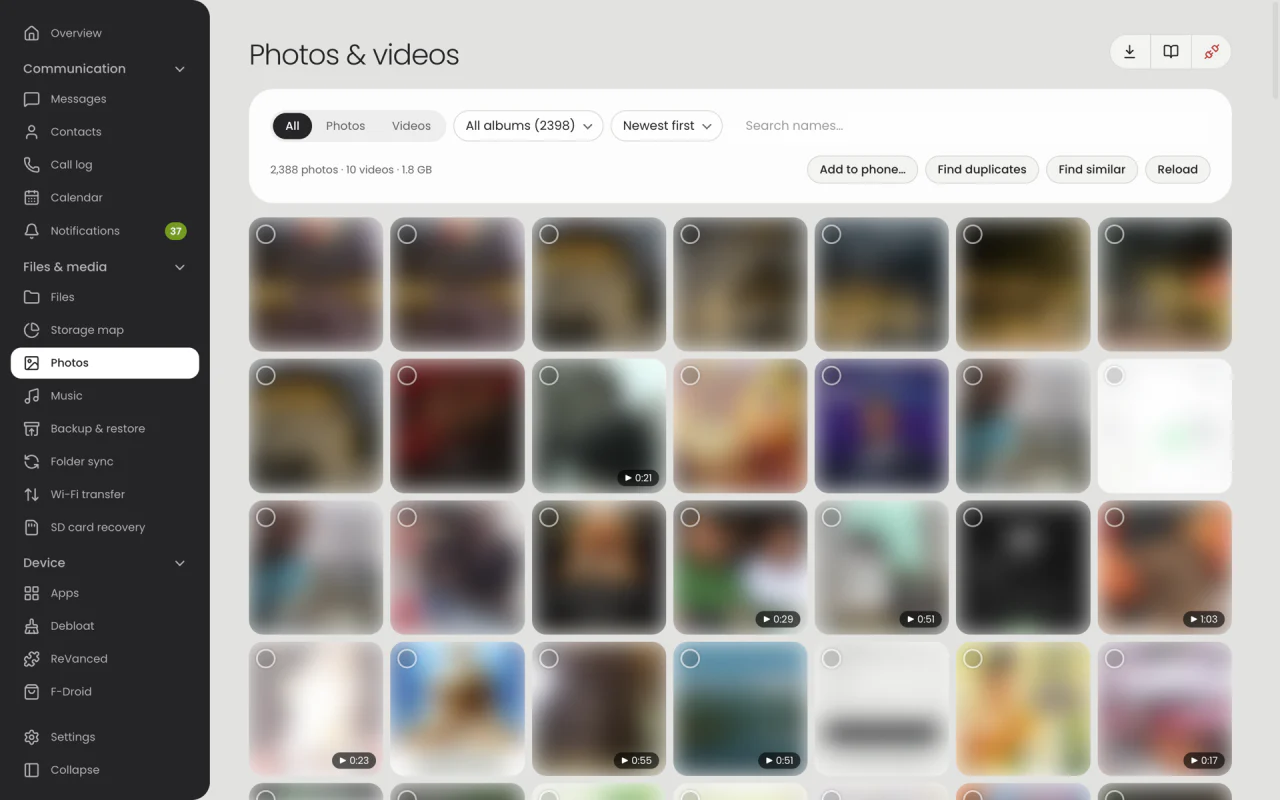
Browse the phone's storage, drag files in and out, and see the whole gallery as thumbnails. A backup saves contacts, messages, call log, calendar, apps and photos into one dated folder on your computer.
Copy new photos to the computer every time the phone connects
Find duplicate photos and songs
Send and receive files over Wi‑Fi, without a cable
Restore a backup onto the same phone or a new one
Recover deleted photos and files from an SD card or USB stick
Apps and debloat
Remove bloatware from Android without root
See what each pre-installed app does and how safe it is to remove, from a community-maintained list. Removal is per user, so anything can be restored later from the same page.
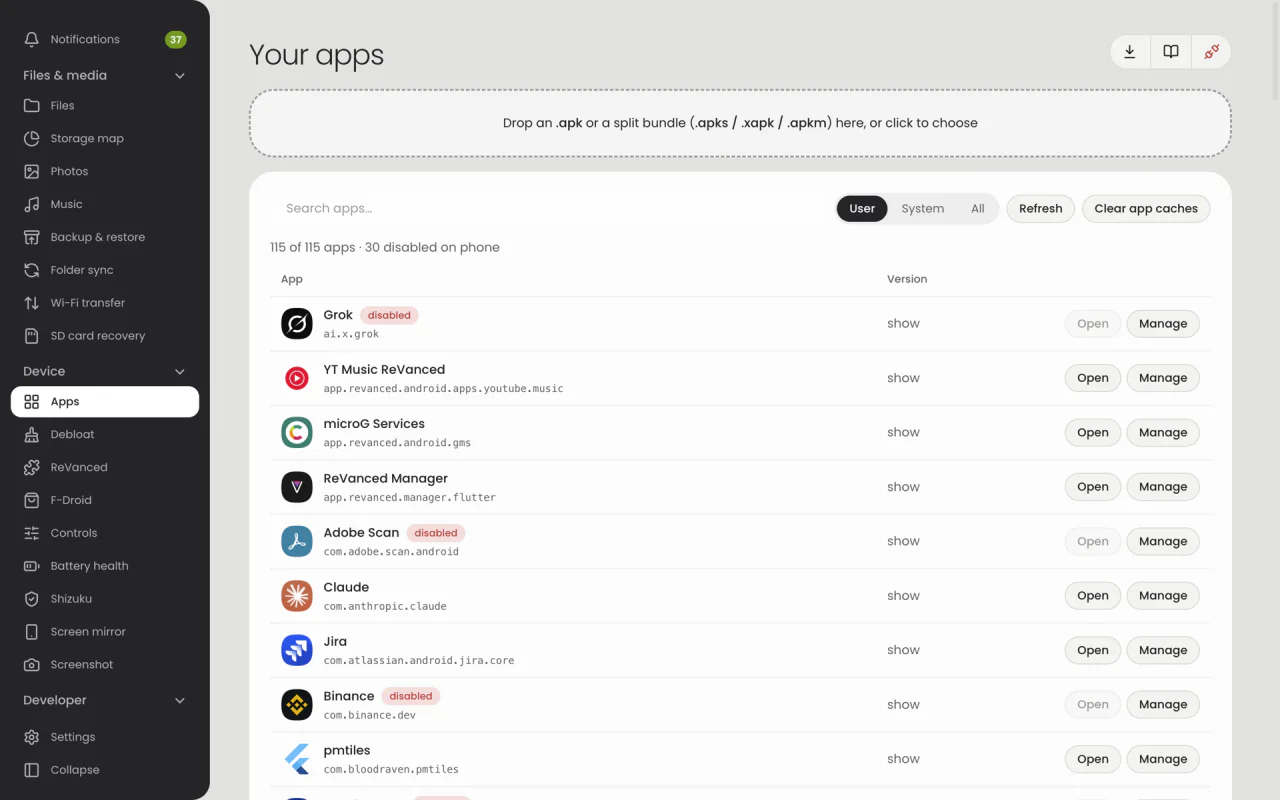
Install APK, XAPK, APKS and APKM files by drag and drop
Uninstall, disable, force stop or export any app
Browse and install open-source apps from F-Droid, with screenshots
Patch apps with ReVanced on the computer
Everything you can do with your phone connected
One window replaces a drawer full of single-purpose tools.
Communication
Messages
Read, search and send SMS and MMS. Export and restore conversations.
Contacts
Edit contacts with photos, merge duplicates, import and export vCard.
Call log and call alerts
See who is calling on the computer. Answer, decline or silence.
Notifications
Every phone notification on your desktop, with reply and quick actions.
Calendar
The phone's calendars as an agenda. Import and export .ics files.
Files and media
File manager
Browse the phone's storage. Upload, download and delete.
Photos and videos
The gallery by album, with a full-screen viewer and duplicate finder.
Music
Songs, artists and albums. Play on the computer or copy either way.
Wi‑Fi transfer
Send and receive files on the same network, or over a direct link from the phone.
Backup and restore
Contacts, messages, calls, calendar, apps and photos in one folder.
SD card recovery
Get deleted photos, videos and files back from a memory card or USB stick.
Device
Plug and go
Connects when the phone is plugged in, and keeps other adb tools off it.
Screen mirror
Use the phone from the computer, with sound and MP4 recording.
App manager
Install, uninstall, disable and export apps. Manage their permissions.
Debloat
Remove pre-installed apps safely, and bring them back if needed.
Controls
Wi‑Fi, Bluetooth, brightness, volume, dark theme, reboot and more.
Screenshot
Capture the phone's screen and save it as a PNG.
Developer and testing
Shell and logcat
Run shell commands with saved snippets. Logcat with a crash finder.
Test automation
Record a test by using the app, then replay it. HTML and JUnit reports.
Performance tests
Startup time, smoothness and memory, with limits and history.
API inspector
See the HTTP and HTTPS calls an app makes, and test APIs.
Device tools
Fake GPS location picked on a map, port forwarding, Perfetto traces and heap dumps.
On the phone
A phone-care app comes with it
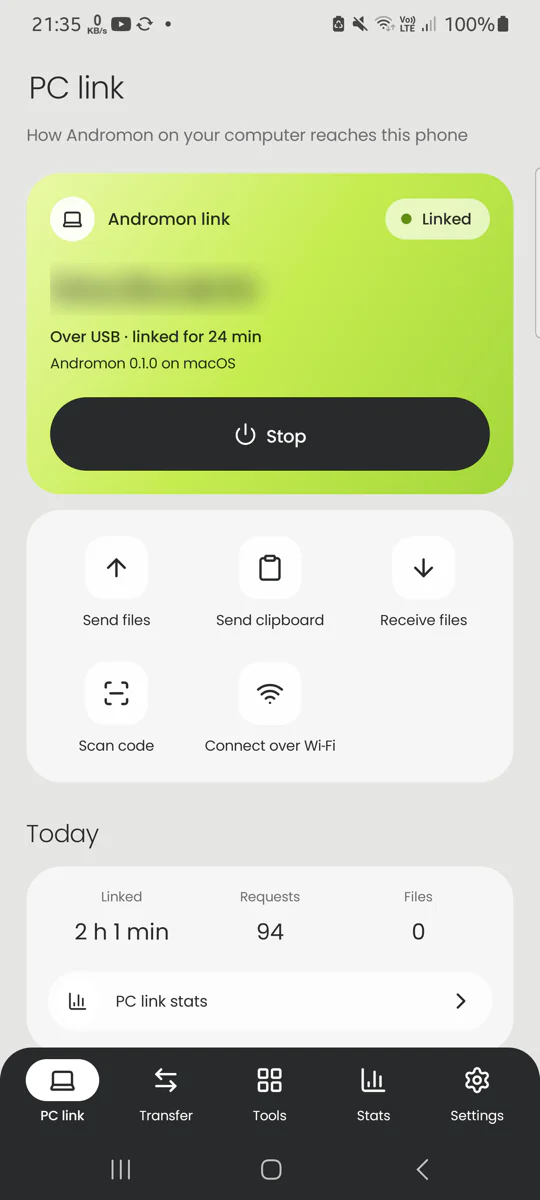
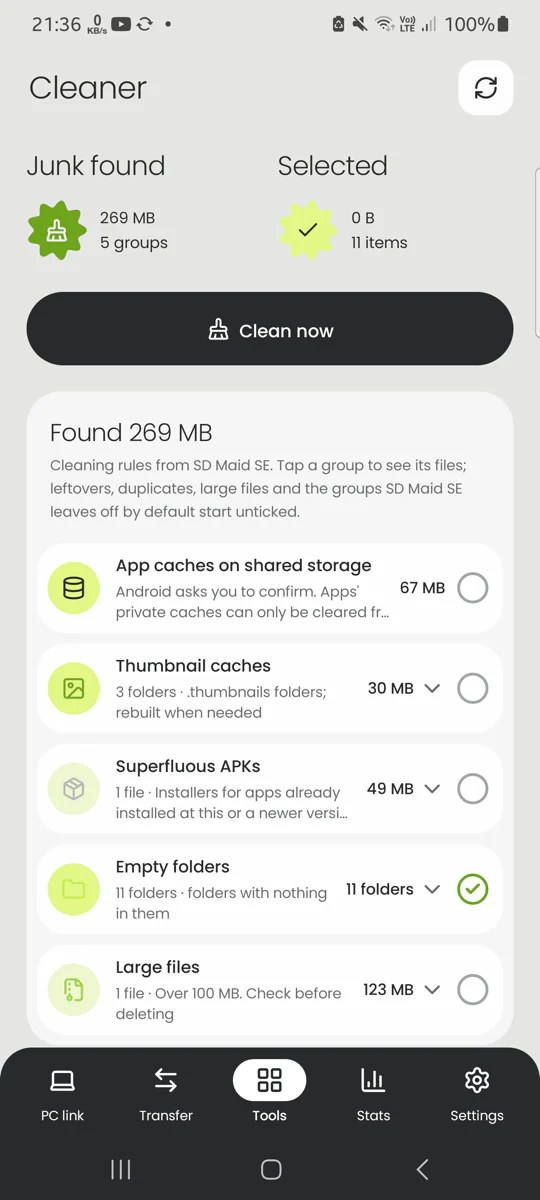
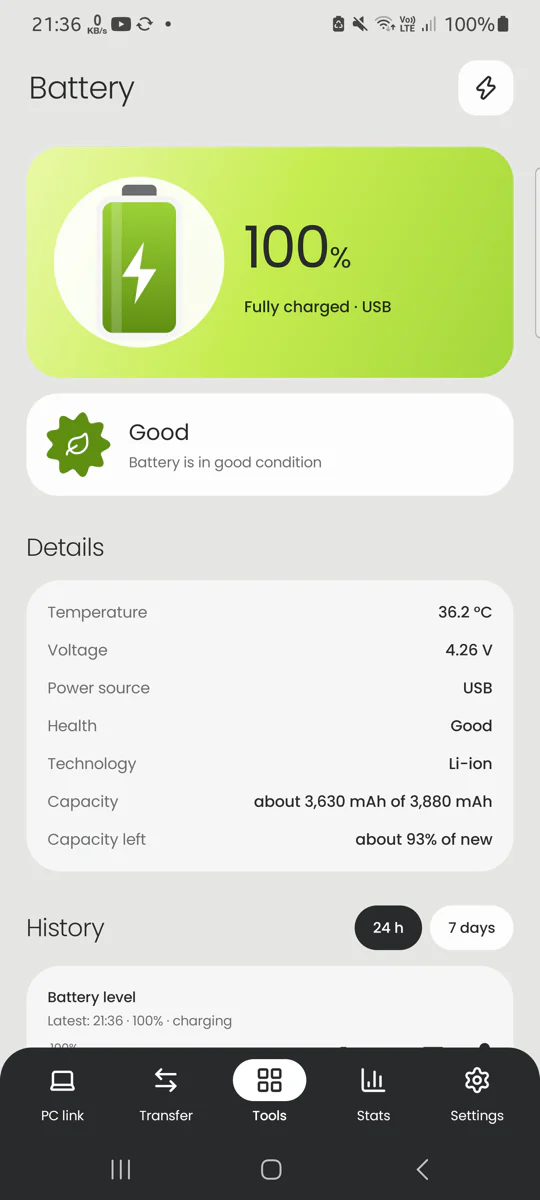
Andromon installs a small companion app on the phone when a feature needs it. It also works on its own, as a cleaner and health check for the phone.
How to connect your Android phone to your computer
Install Andromon
Download the installer for Windows, macOS or Linux and open it. No drivers, Android SDK or adb to install. The first time, your computer may ask you to confirm: see "If your computer won't open it" under Download.
Turn on USB debugging
On the phone, open Settings › About phone and tap Build number seven times. Then switch on USB debugging under Developer options.
Plug in and allow
Connect the USB cable, click Connect phone in Andromon, and tap Allow on the phone. After the first time it connects by itself whenever you plug the phone in, and you can also connect over Wi‑Fi.
Download Andromon
Free. No account, no ads.
Your computer
Windows
Windows 10 and 11: 64-bit, ARM64 and 32-bit. Setup wizard.
The installers aren't code-signed by Apple or Microsoft yet, so the first time your computer asks you to confirm, or blocks the installer. They are the same files as on GitHub Releases, listed with their SHA-256 in SHA256SUMS.txt.
Windows: "Windows protected your PC"
SmartScreen. Click More info, then Run anyway.
Windows 11: "Smart App Control blocked an app"
Smart App Control blocks apps that aren't signed and has no way past it. Use the online version in Chrome or Edge instead, with nothing to install. Turning Smart App Control off (Windows Security › App & browser control) lets the installer run, but on many PCs it can't be turned back on without resetting Windows, so we don't recommend it.
macOS: "Apple could not verify “Andromon” is free of malware"
Click Done. Open System Settings › Privacy & Security, scroll down to "Andromon was blocked" and click Open Anyway, then confirm. Only needed the first time. On macOS 14 and earlier, right-clicking the app and choosing Open also works. In Terminal: xattr -dr com.apple.quarantine /Applications/Andromon.app
Linux
AppImage: make it executable (chmod +x Andromon-*.AppImage) and run it. .deb: sudo apt install ./Andromon-*.deb
Android
Andromon on the computer installs the companion app for you. To install the APK by hand, allow installing apps from your browser or file manager when Android asks.
Want to try it first? Open the online version in Chrome or Edge on your computer, with nothing to install.
Version 1.0.5 (build 5), released 19 November 2026. Phone app 1.0.5 (build 11). All files, checksums and older versions are on GitHub Releases.
Questions and answers
Every page and option is explained, with screenshots, in the user guide.
What is Andromon?
Andromon is a desktop app for managing an Android phone from a computer. It shows the phone's messages, contacts, calls, files, photos, music and apps in one window, mirrors the screen, and makes backups. It runs on Windows, macOS and Linux.
Is Andromon free?
Yes. Andromon is free to download and use. There is no account, no subscription and no advertising.
Which phones and computers does it work with?
Any Android phone or tablet with USB debugging turned on. The companion app needs Android 8.0 or later, and connecting over Wi‑Fi needs Android 11 or later. On the computer, Andromon runs on Windows (64-bit Intel/AMD and ARM64), macOS (Apple Silicon and Intel) and 64-bit Linux.
Do I need to root my phone?
No. Everything works on a normal, unrooted phone, including removing pre-installed apps.
Do I have to install anything on the phone?
Not to connect. Screen mirror, files, apps and controls work straight away. For messages, contacts, call log, calendar, photos and notifications, Andromon offers to install its small companion app over the cable, and sets up its permissions for you.
Can I connect without a USB cable?
Yes, on Android 11 and later. Connect the cable once and click "Use this phone without the cable", or pair by scanning a QR code with the phone's Wireless debugging setting. After that the phone connects over Wi‑Fi with one click.
What if Android Studio or adb is already using the phone?
Only one program at a time can use a phone's USB debugging connection. When you connect, Andromon closes adb in other programs (the Android SDK, Android Studio, scrcpy) and keeps it closed while the phone is connected. It never closes a browser or your other apps. If you use Android Studio alongside Andromon, turn this off in Settings › Phone link.
Can it recover deleted photos?
From an SD card or USB stick, yes: the SD card recovery page uses the free PhotoRec tool to find deleted photos, videos and files on a card in your computer's card reader, without changing the card. A phone's built-in storage is encrypted and wipes deleted space, so nothing can undelete it, but the companion app finds photos still in trash and recycle folders.
Where does my data go?
Straight between your phone and your computer, over the USB cable or your own Wi‑Fi network. Andromon has no accounts and no cloud storage. It uses the internet only for things you ask for, such as downloading the F-Droid catalogue or the debloat list, and to check for updates.
Is it safe to remove pre-installed apps?
Andromon labels each pre-installed app as Recommended, Advanced, Expert or Unsafe to remove, using a community-maintained list. Apps are removed for your user only, so you can restore them from the same page, and a factory reset brings everything back.
Can I mirror my Android screen and control it with a mouse and keyboard?
Yes. Screen mirror shows the phone live in a window. Clicking is a tap, the scroll wheel scrolls, and the keyboard types on the phone. Sound from the phone needs Android 11 or later.
Can I make the text bigger or turn off animations?
Yes. Settings has accessibility options: four text sizes, high contrast, reduced motion, bold text, a plain system font, a strong keyboard focus outline and underlined links. High contrast and reduced motion can follow your computer's settings.
Windows says "Windows protected your PC" or Smart App Control blocked it. What do I do?
Andromon's installers aren't code-signed by Microsoft yet. For "Windows protected your PC", click More info, then Run anyway. Smart App Control on Windows 11 blocks unsigned apps with no way past it: use the online version of Andromon in Chrome or Edge instead, which needs nothing installed.
macOS says Apple could not verify "Andromon" is free of malware. What do I do?
The Mac app isn't notarized by Apple yet. Click Done, then open System Settings › Privacy & Security, scroll down to "Andromon was blocked" and click Open Anyway. You only need to do this once.
Does it work with iPhone?
No. Andromon is for Android phones and tablets only.